Your AI agent can now answer with the images in your knowledge base

Your AI agent can now use the images and videos inside your knowledge base, not only the text around them.
A knowledge base has always known what its documents say. It did not know what they show. The wiring diagram, the dashboard screenshot, the photo of the port on the back of the device: all of it was invisible to the agent, so it read the paragraph next to the picture and answered from that.
That is fixed in the latest Tars update. Turn on the Media search setting for a knowledge base and it indexes the visual content too. When a question lands on a document that is already the right answer, the pictures inside that document come with it, and the agent can put them in the reply. Ask for the picture and you get it.
What this looks like in a real conversation
"Which port do I plug this into?"
The answer to that question is almost never a paragraph. It is a diagram on page four of the setup guide. Until now the agent could only describe that diagram in words, which is about as useful as having someone read a map to you over the phone.
You feel this most on products with visual documentation. Setup and installation guides. Dashboards where the answer is which button sits where. Device photos. Screenshots of your own interface, in your own help center, which your customers are trying to follow along with.
Turn Media search on for one knowledge base
Media search is off by default.
Open Knowledge, pick the knowledge base, and open its settings.
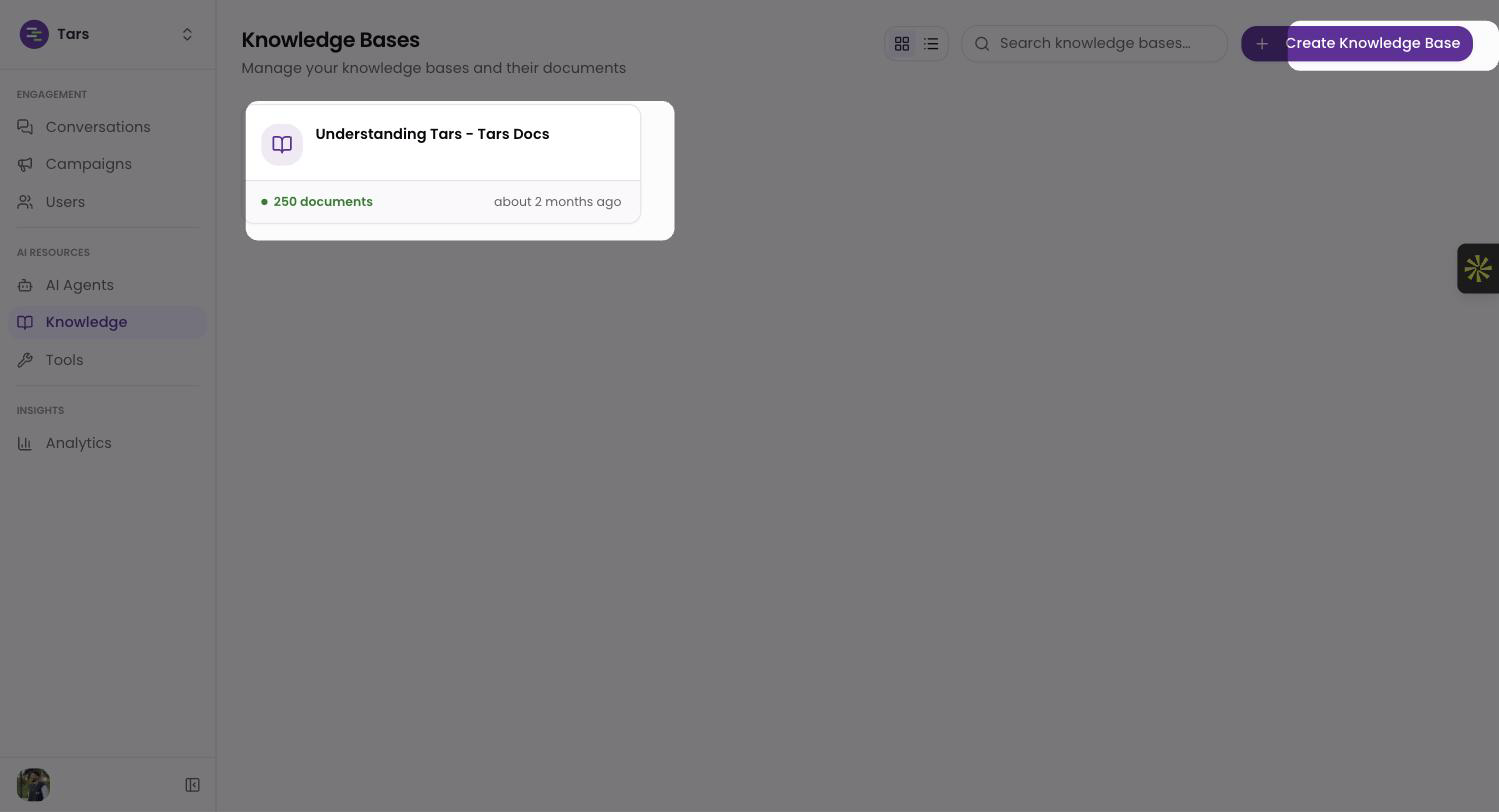
Switch Media search on and save. Indexing starts from there.
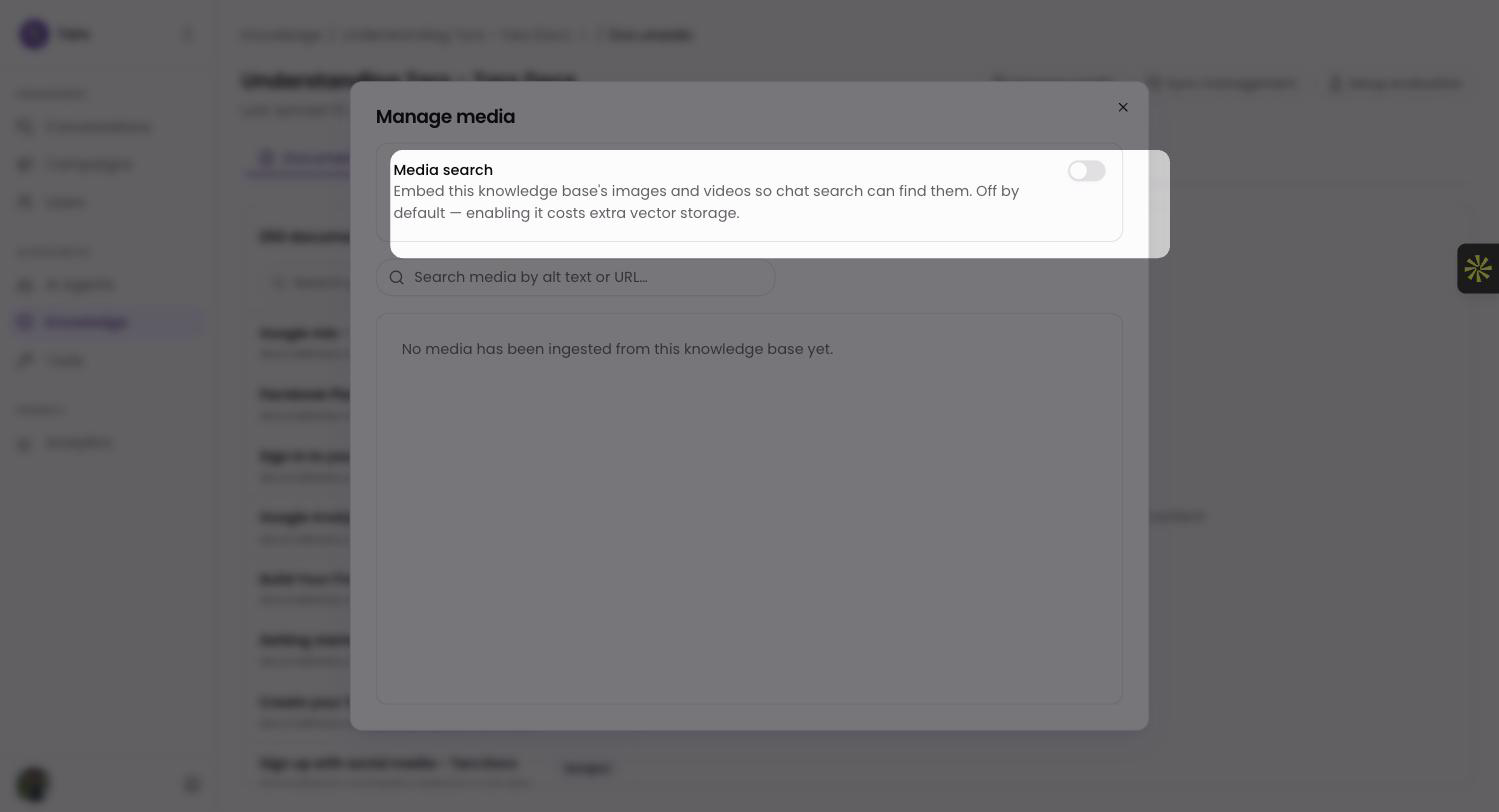
If the knowledge base already exists, you do not rebuild it. There is a reprocess action that runs over the media in everything already loaded, so an old knowledge base gets backfilled in place.
What gets indexed, and what gets skipped
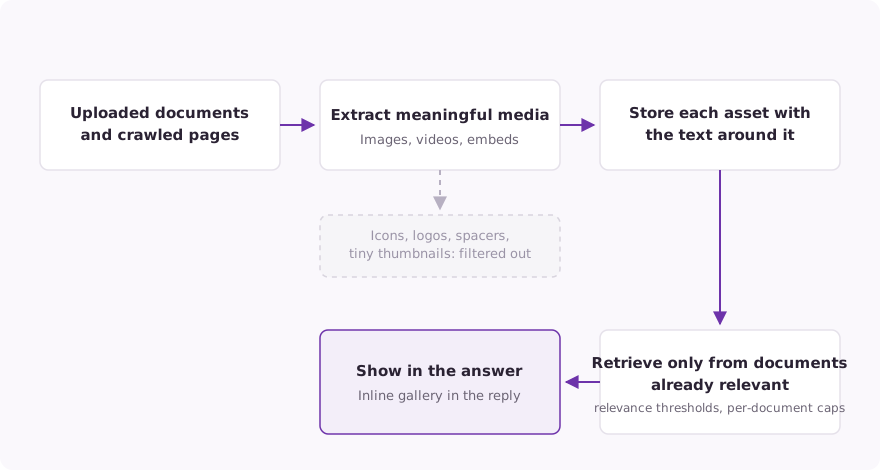
Media search pulls meaningful images and videos out of two places: the documents you upload, and the sites you crawl.
It skips the decoration. Icons, logos, spacers and tiny thumbnails are filtered out during ingestion, so you are not indexing your own header logo and you are not retrieving it later.
The crawler handles video too. It detects videos and embeds on the pages it crawls, and there is browser-crawl guidance for pages that render their video with JavaScript.
How a picture gets retrieved
There is no separate image search box. Media rides the same relevance the text does.
Each asset is embedded together with the text around it. That surrounding text is what makes a picture findable, because a diagram on its own carries very little that a search can match against.
Media is then retrieved only from documents that are already relevant to the question. It rides the same retriever your text answers ride, with relevance thresholds and a cap on how much media any one document can contribute. A picture surfaces when its document was going to be the answer anyway.
Then the agent gets the image itself. The bytes are fetched securely and handed over alongside the text, so the agent is working from what is in the picture rather than from a caption someone wrote three years ago.
Manage media shows you what got indexed
Retrieval quality depends on whoever curates the knowledge base, so there is a surface built for that person.
Manage media lists every indexed asset in the knowledge base. You can browse and search it, and you can see indexing status per asset, including what failed and why.
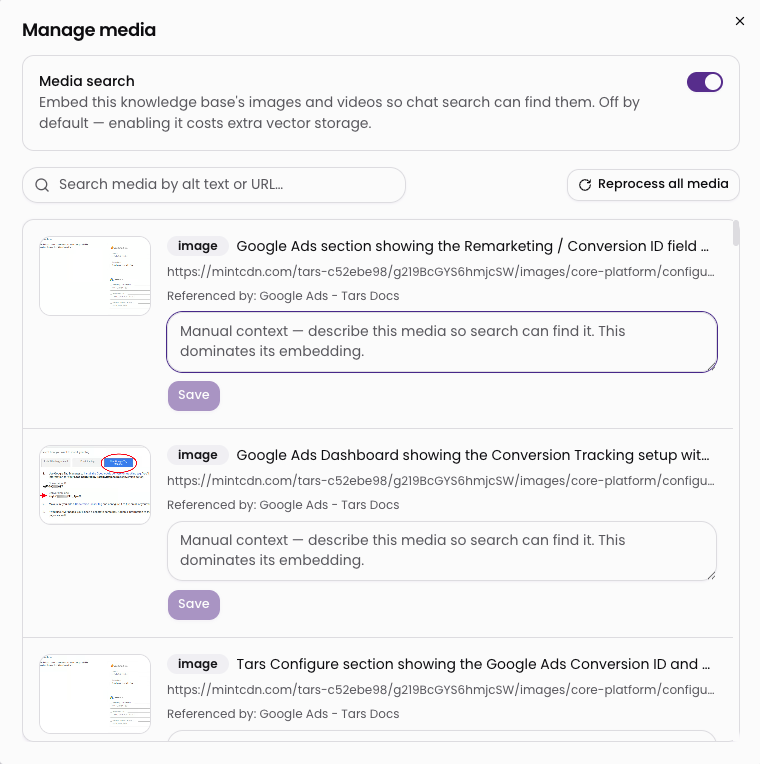
You can also write a short context description onto an asset. That description feeds retrieval, so a picture that keeps getting missed becomes findable without anyone editing the source document. This is the useful part for teams whose documentation is owned by somebody else: you improve the agent without filing a request against the docs.
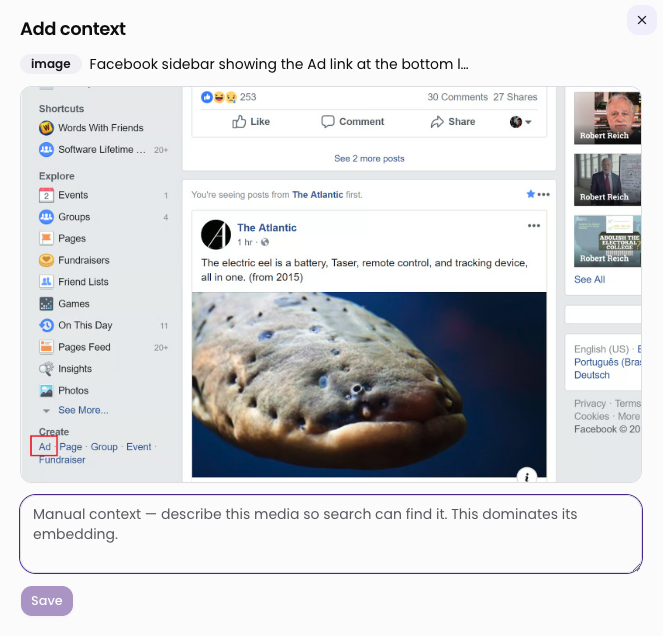
The same context editing is available from a document's preview.
What AI agent knowledge base images look like in chat
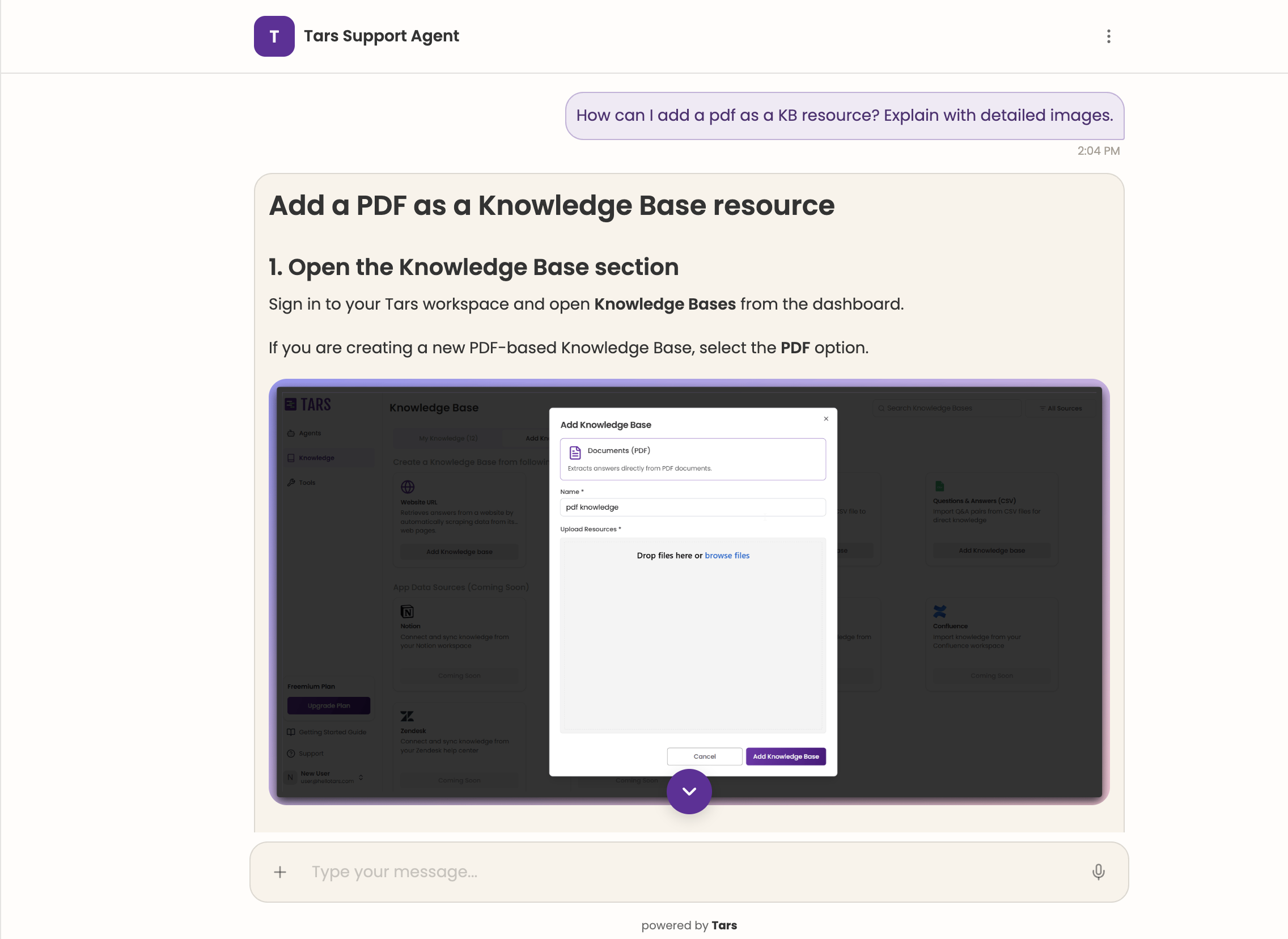
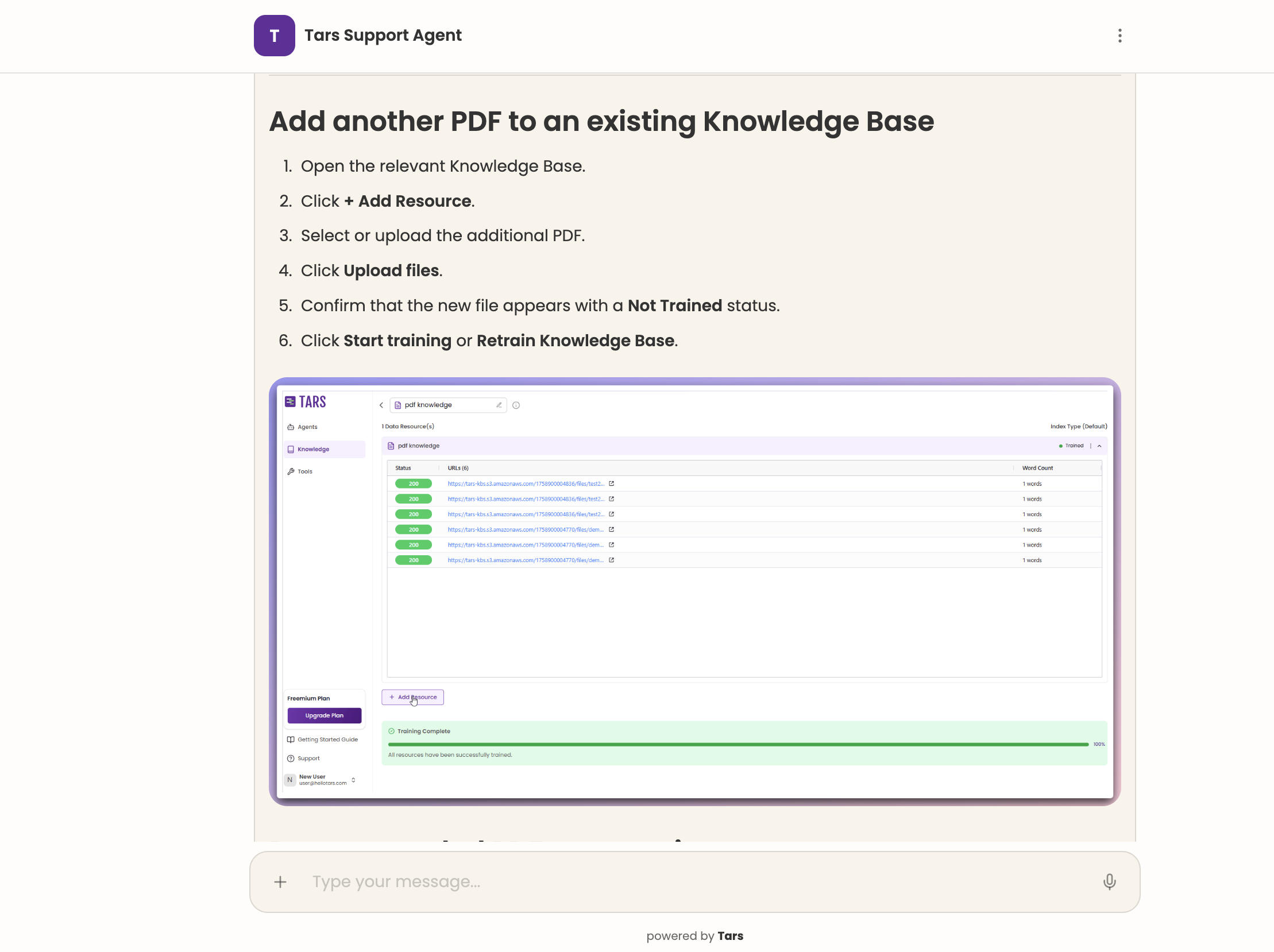
Images come back as an inline gallery in the conversation. Videos and supported document embeds play right there in the chat, so nobody is sent off to another tab to watch a thirty second clip.
What this changes for a support team
Your best documentation was never only text. Somebody drew that diagram because the sentence was not working.
A healthcare team keeps a picture of the form field a patient always fills in wrong. An insurance team keeps a screenshot of the claim status screen. A hardware support desk lives on setup diagrams. In each case the agent used to answer around the picture, and the customer had to go find the page themselves.
Now the agent can show the page. Turn Media search on for the knowledge base with your most visual documentation, ask it the five questions your team answers most often with a screenshot, and see how close it gets.
Build innovative AI Agents that deliver results
Ish is the co-founder at Tars. His day-to-day activities primarily involve making sure that the Tars tech team doesn’t burn the office to the ground. In the process, Ish has become the world champion at using a fire extinguisher and intends to participate in the World Fire Extinguisher championship next year.


Recommended Reading: Check Out Our Favorite Blog Posts!
Tools & Integrations: built-in, connected and custom tools an AI agent can call
Identity and Data Protection: personal data can be redacted or masked before storage
Generative UI: your AI agent renders tables, charts and forms inside the chat