Generative UI: your AI agent renders tables, charts and forms inside the chat

A Tars AI agent can now render an interface inside the conversation. A comparison table, a chart, a form, a calendar, a file upload. It decides mid-conversation which one the question calls for.
Until now a chat agent had one output shape. Text, plus whatever inputs someone wired into a flow in advance.
The model could always work out the comparison between three plans. It just had no way to show one, so it described it in six paragraphs and the customer did the rendering in their head.
A prospect said it to us plainly on a call. Instead of a step by step list of instructions, they wanted the conversation to be more interactive.
That is what Generative UI changes. The docs call the things an agent can render Interface components. This post covers what AI agent interface components are, what you control, and what your customers see.
Two families, split by whether the conversation waits
AI agent interface components are elements the agent renders inside a chat conversation instead of answering only in text. In Tars there are two families. One renders next to the reply and the conversation keeps moving. The other stops the agent until the customer answers.
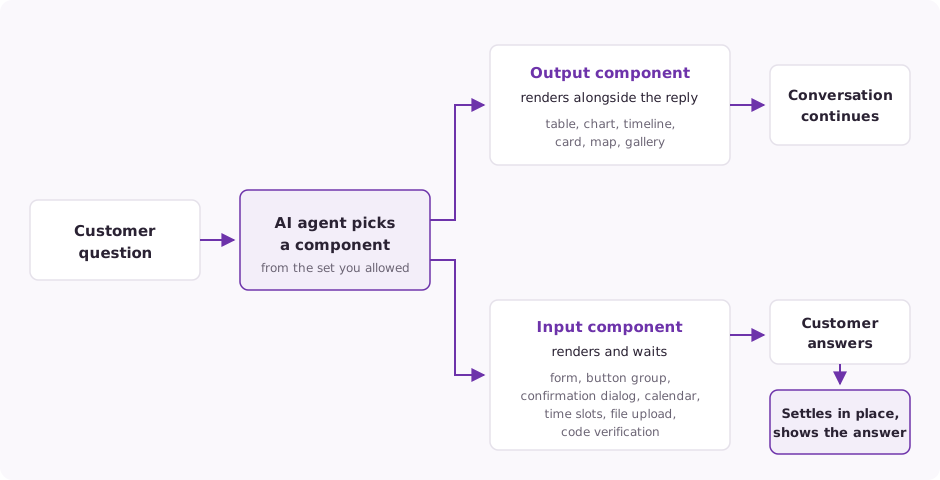
Output components are the non-blocking family. The component appears alongside the agent's reply and nothing pauses.
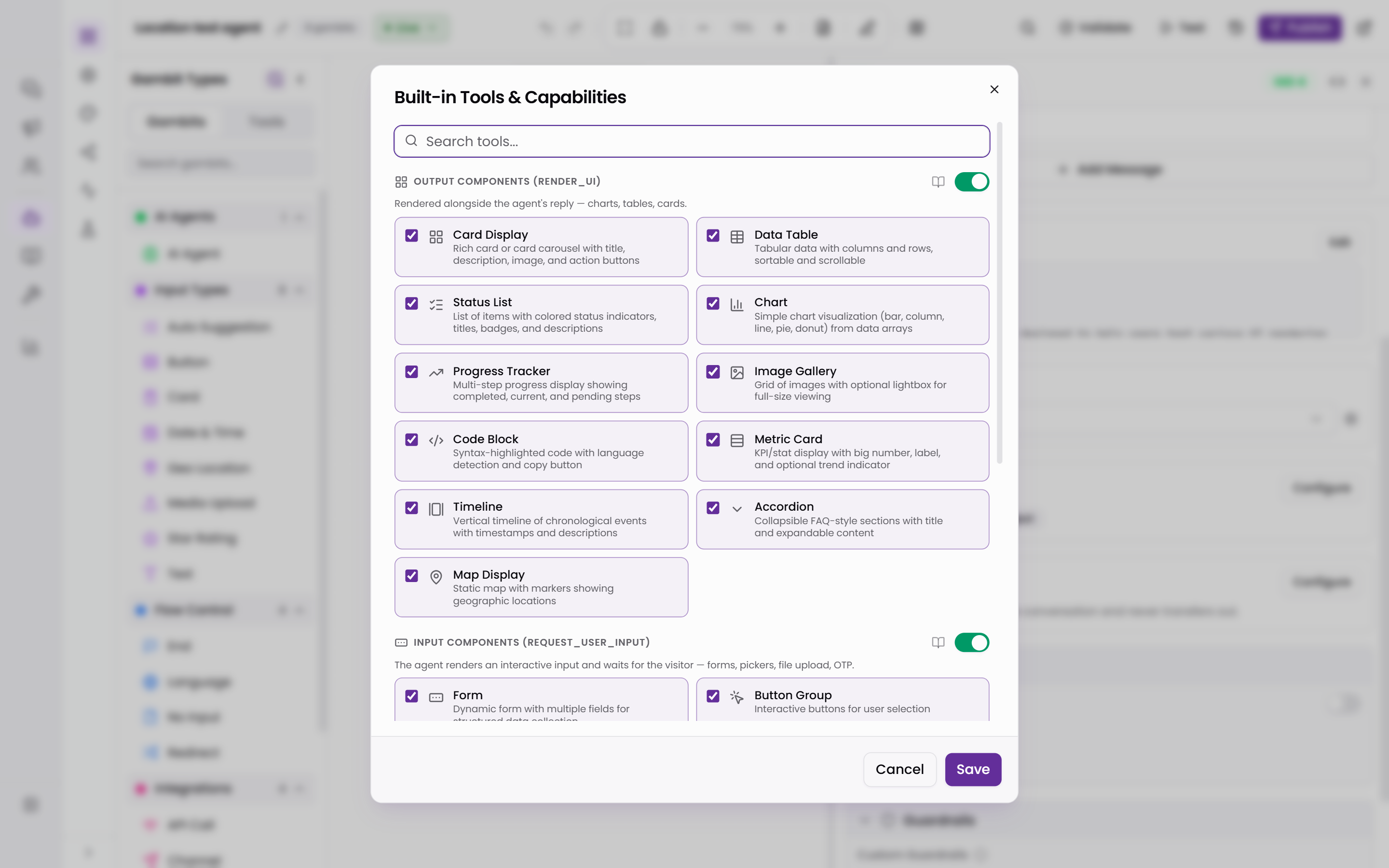
The set covers cards, data tables, charts, metric cards, timelines, maps, progress trackers, status lists, image galleries, accordions and code blocks. In the builder each one is a card you select, such as Card Display, Data Table or Map Display. Under the hood the agent calls a tool named render_ui.
Input components are the blocking family. The agent renders an interactive element and waits for the answer before it goes on.
The set covers forms, button groups, confirmation dialogs, calendars, time slots, file upload and one-time-code verification. The tool is named request_user_input.
What the agent shows when words would be slower
Three plans become a comparison table instead of six paragraphs.
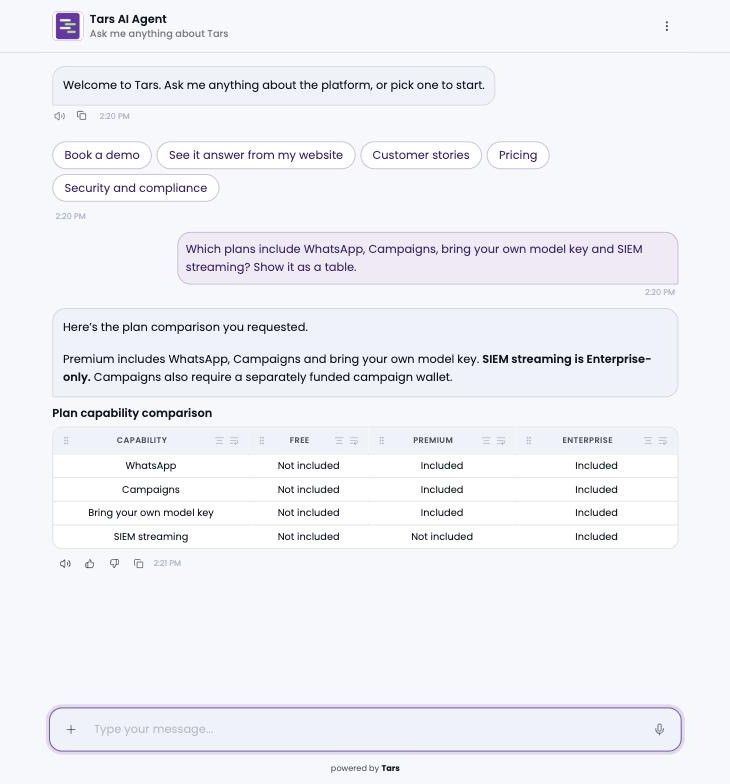
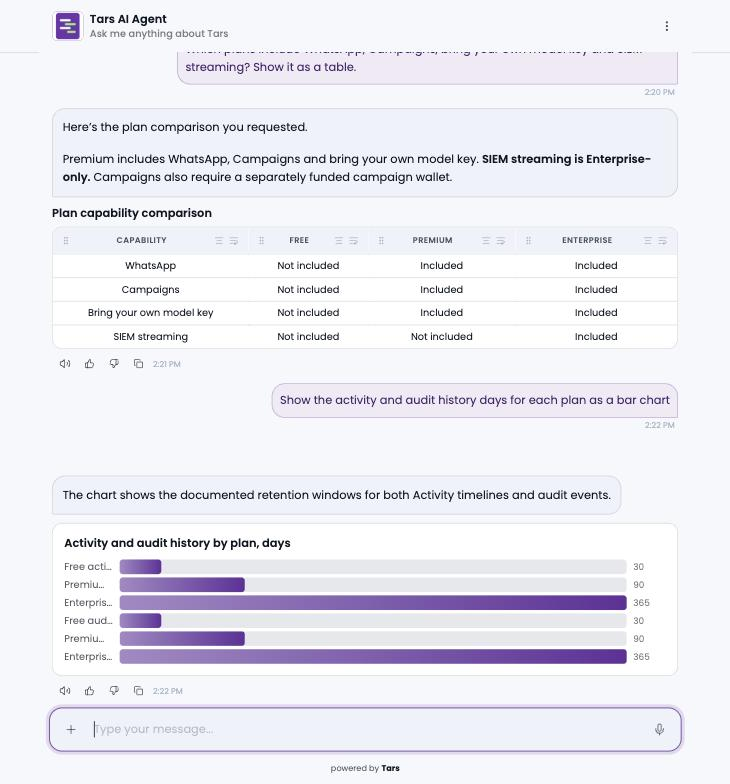
Here is the AI agent on the Tars website doing it. A visitor asks which plans include WhatsApp, Campaigns, bring your own model key and SIEM streaming, and asks to see it as a table. The agent answers in two short sentences and renders the table under them.
One question later, the visitor asks for the activity and audit history days on each plan as a bar chart. The agent draws it under the table, in the same thread.
A claim in flight can show as a status timeline, and the nearest branch as a map. The agent picks the format the same way it picks the words.
What the agent asks for when it needs something back
The interrogation pattern is what makes chat feel slow. Six questions, one at a time, each one waiting on the last.
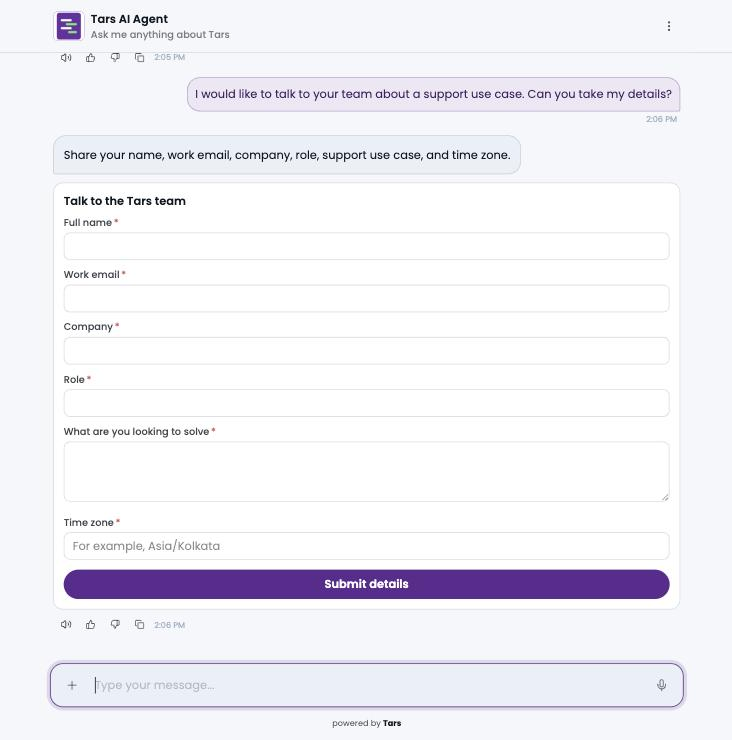
With input components the agent renders one form and your customer fills it in one go. On the Tars website, a visitor who asks to talk to the team gets this.
A calendar or a set of time slots lets them pick a time in the conversation. A file upload takes the document you need at the step you need it.
A one-time code lets the agent confirm the customer's email address or phone number before it goes further. A confirmation dialog asks for a clear yes before the agent does something that matters.
All of that happens inside the chat rather than on a separate page.
What happens to a sensitive answer in a form
A form is where people type the things you least want sitting in a transcript, like a date of birth or an account number.
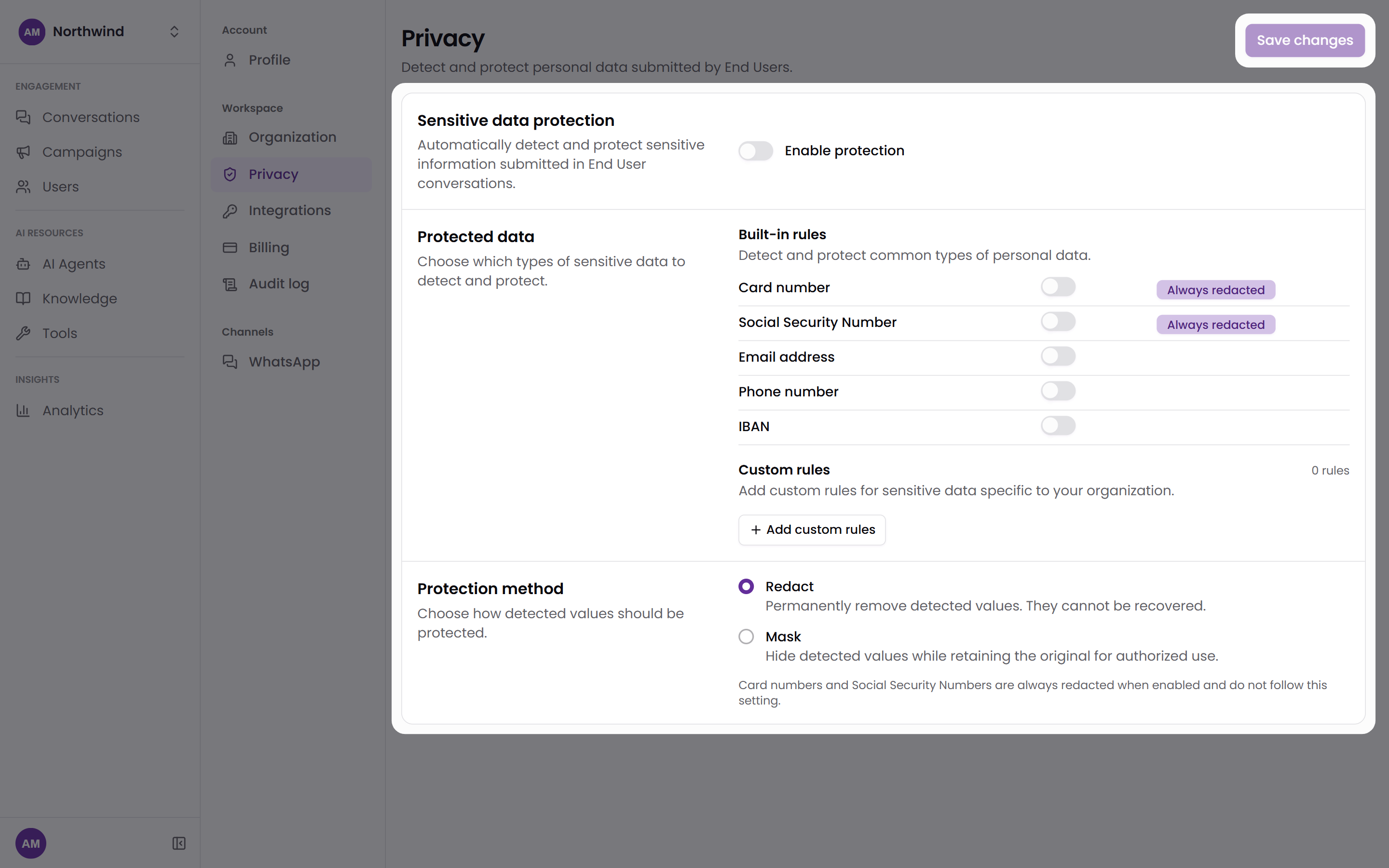
Form answers follow your personal data protection settings. With protection on, Tars checks each form answer against your rules before it stores it, the same as a message.
The agent can also mark a form field as protected when the whole answer is personal data. Then Tars protects the full answer, not only the part that matches a rule.
What gets stored depends on the method you chose. In Redact mode Tars stores asterisks and does not keep the original. In Mask mode it stores a placeholder made from the field label, such as [DATE_OF_BIRTH], and keeps an encrypted original for the window you set.
Card numbers and Social Security Numbers are the exception. If a protected answer contains one, Tars redacts the full answer in either mode and keeps no original.
The submitted form in the chat shows the protected value, not what was typed.
Protection is off until an Admin turns it on under Settings, then Privacy. The personal data protection docs cover the rules and methods.
The work the agent does comes back as a component
Your agent can run code for a calculation, generate a file such as a PDF, a CSV or an image, pull structured data out of a conversation, and search the web.
Those results can arrive as components too. A calculation can come back as a chart, extracted data as a table, and a generated document as a file the customer opens.
The same composition works with attachments. When a customer uploads a spreadsheet and asks to see it, the agent can read the file and render it as a table in the thread.
You decide what each agent is allowed to render
An agent that answers everything with a chart is worse than one that types.
So the rendering is gated, component by component. You set it on each AI Agent gambit. A gambit is one step in a flow, so an agent with two AI Agent gambits can allow a different set in each.
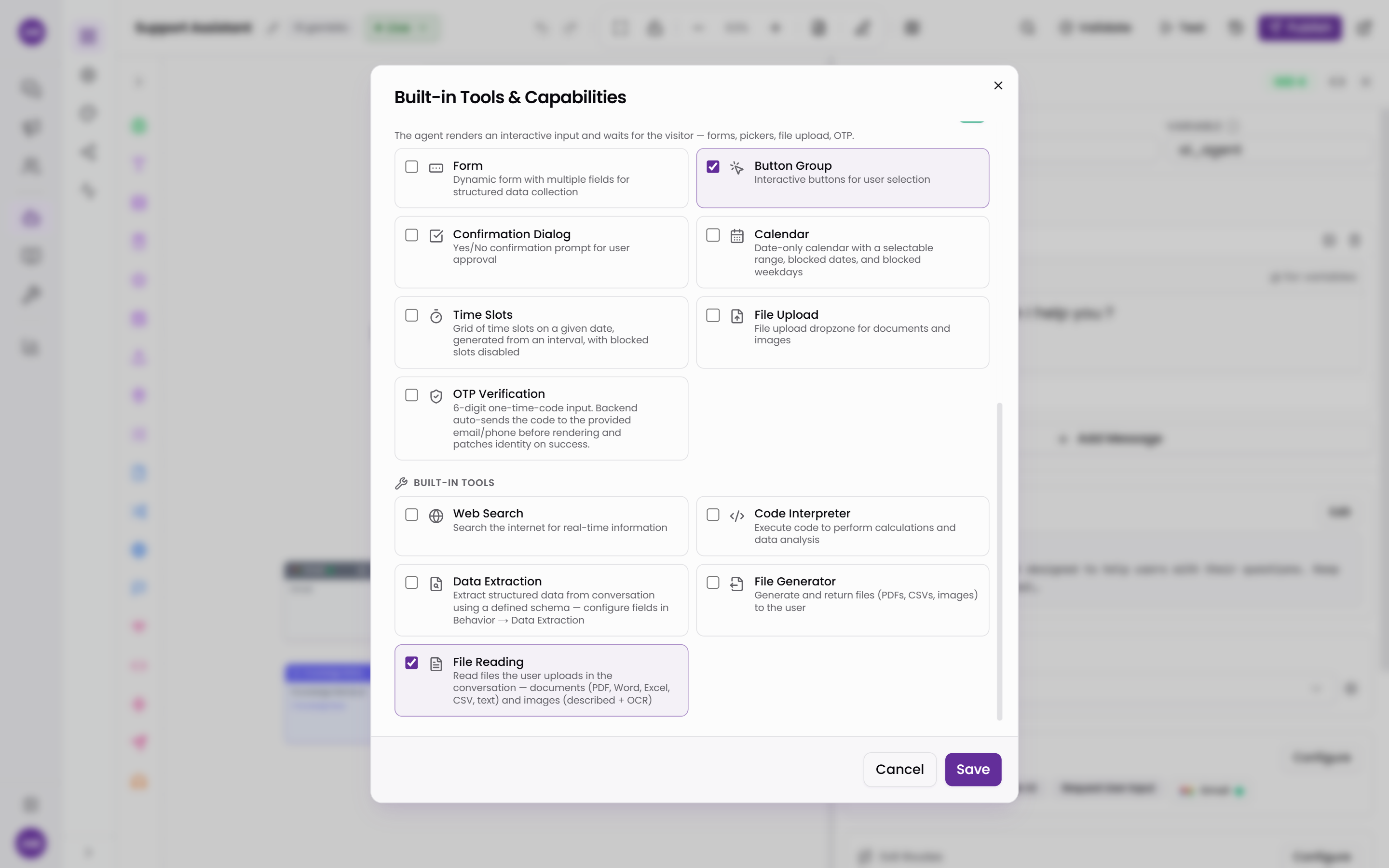
Here is where it lives. In the builder, select the AI Agent gambit, then Configure in its Tools and Capabilities region. The Built-in Tools and Capabilities dialog opens with a section for each family.
Each family has its own switch. Under it you select the individual component cards, and Save applies the selection to that gambit.
After you publish, the components render in the web widget and on the full-page agent link. The two are the same chat in different frames, and both come with every plan.
What your customers see of the agent's work
Three switches on the Debug tab of the Configure page decide how much of the agent's working your visitors see.
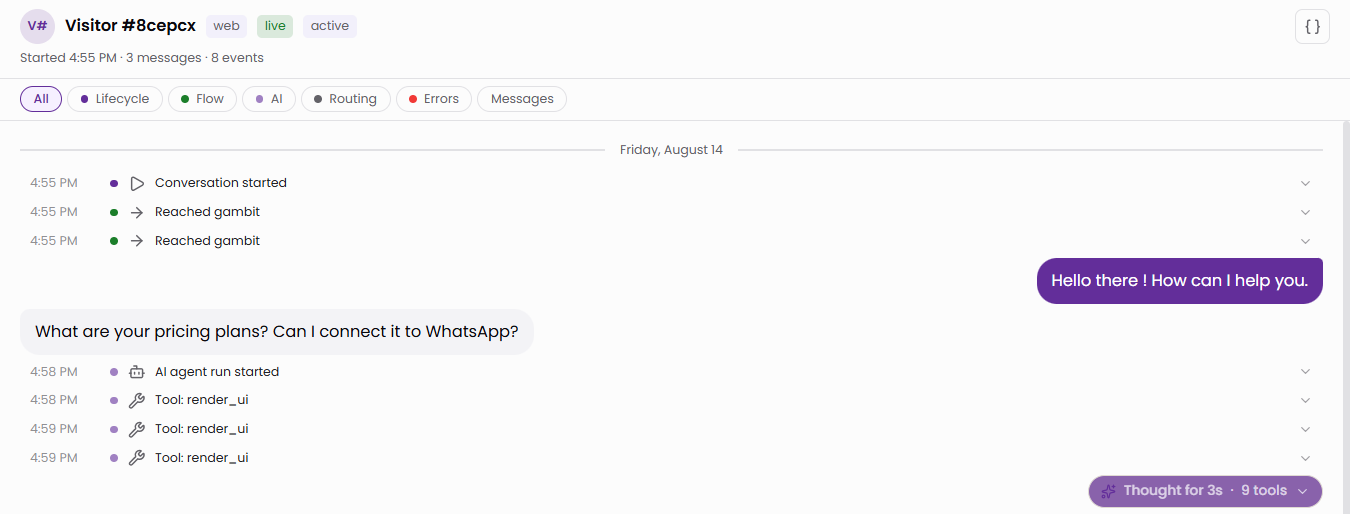
Show AI reasoning to visitors is on by default. That is the "Thought for 3s" pill above an answer. Show tool calls to visitors is off, and it depends on reasoning being on. Show knowledge citations is off.
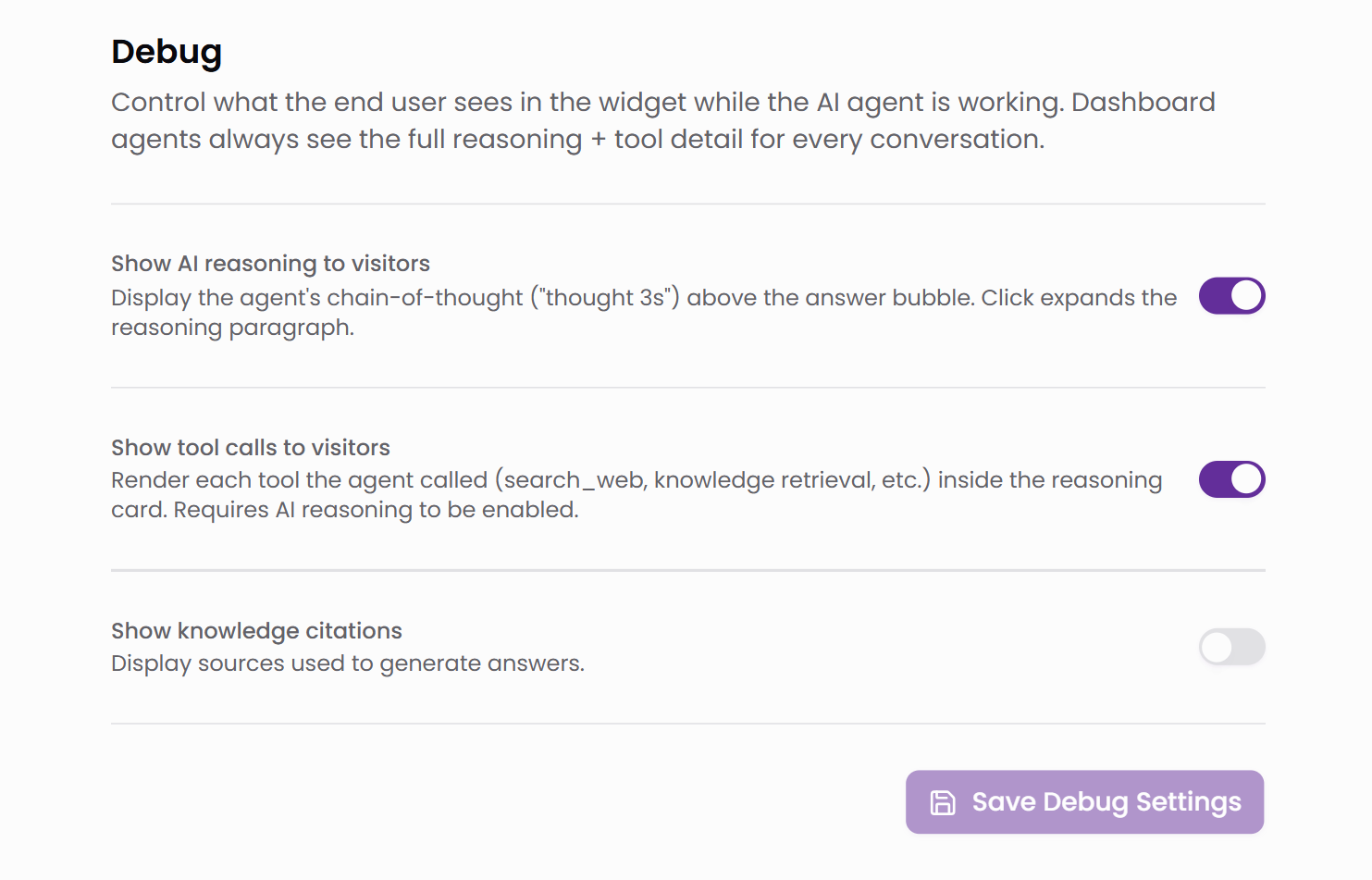
Hiding activity changes only the presentation. In the dashboard you always see the full reasoning and the tool detail for every conversation.
Answered components stay answered
When a customer answers an interface component, it settles in place and keeps showing what they chose.
A conversation you scroll back through a week later reads like a record of what happened, rather than a row of empty widgets you have to reconstruct.
The answered component keeps showing the answer on your dashboard activity screens too.
Where the images and videos come from
Generated and uploaded images open in a full-screen gallery.
Your agent can also show media from a knowledge base. Media search must be on for that knowledge base, and it is off by default. If the knowledge base already has content when you switch it on, run Reprocess all media so the existing images and videos are included.
With it on, the agent can find matching images and show them in a gallery or on a card. A video from the knowledge base plays directly in the agent's reply.
How Media search finds the right picture is its own post: Your AI agent can now answer with the images in your knowledge base.
What this changes for a CX team
The agent usually knew the answer. It could only type it.
For a healthcare desk that means a patient picks an appointment slot in the thread instead of being sent to a booking page.
For an insurance desk it means a claim in progress shows as a timeline the customer can read at a glance.
A marketing team gets the plan question answered as a table with a button under it, and the lead is captured in the same conversation.
Nobody had to design those screens ahead of time. The agent renders them when the conversation needs them, from the components you allowed.
Build innovative AI Agents that deliver results
Ish is the co-founder at Tars. His day-to-day activities primarily involve making sure that the Tars tech team doesn’t burn the office to the ground. In the process, Ish has become the world champion at using a fire extinguisher and intends to participate in the World Fire Extinguisher championship next year.


Recommended Reading: Check Out Our Favorite Blog Posts!
Tools & Integrations: built-in, connected and custom tools an AI agent can call
Identity and Data Protection: personal data can be redacted or masked before storage
Agent Evals: how we test AI agents with simulated customers and human-aligned judges